AI Video Editing Apps Explained: Descript, CapCut, and Adobe Premiere Pro Compared
Updated: October 29, 2026 | Category: AI Video Apps
Artificial intelligence is changing how creators edit videos.
Tasks that once required extensive manual work—such as transcribing dialogue, preparing subtitles, locating spoken passages, and creating supporting media—can now be assisted by software.
But AI video editing is not one single technology.
Different applications approach the editing process in different ways.
Descript emphasizes editing spoken content through text-based workflows.
CapCut provides accessible timeline editing with tools such as automatic captions.
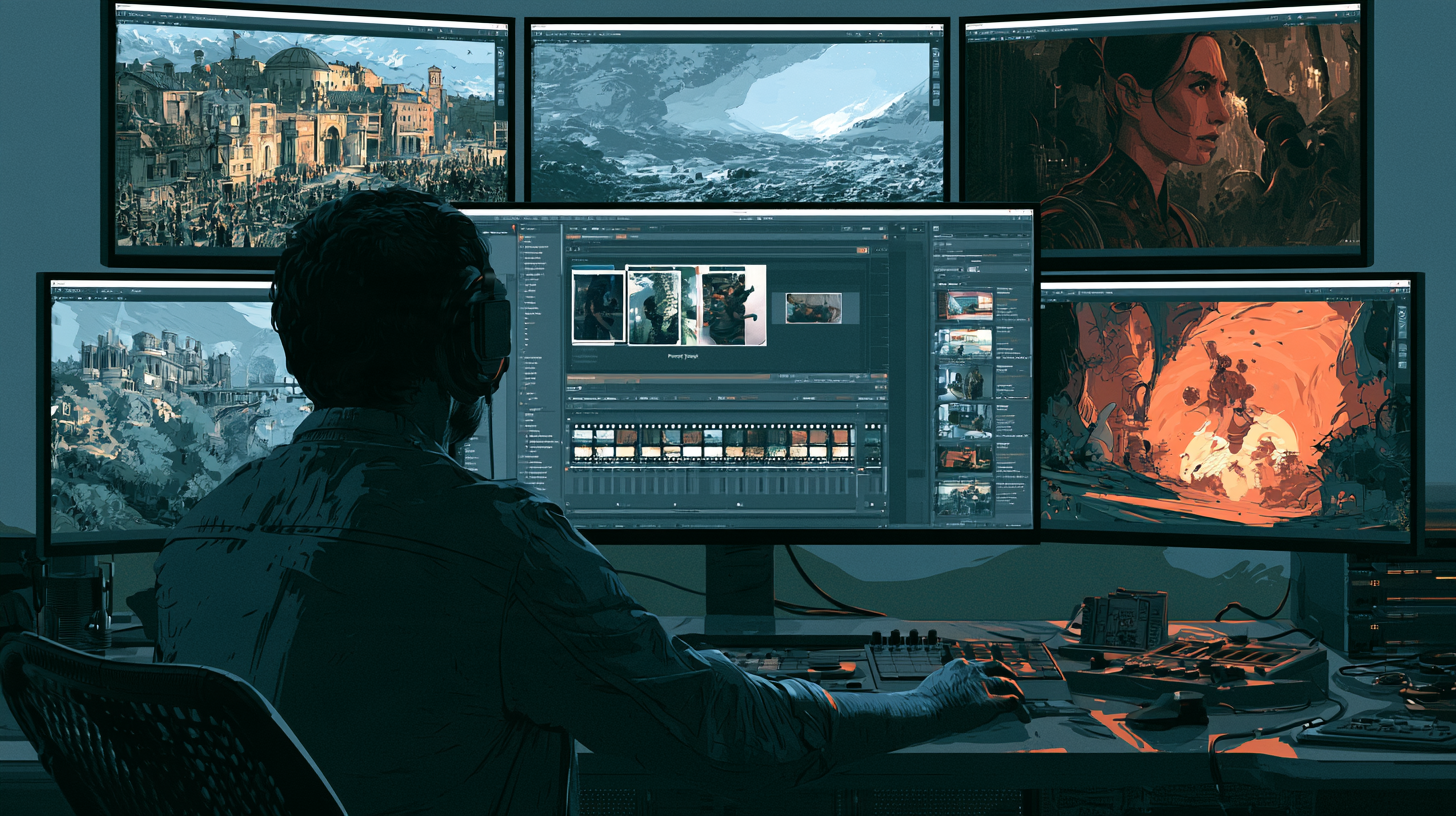
Adobe Premiere Pro offers a professional editing environment with AI-assisted functions, including generative media and transcript-based workflows.
Understanding these differences helps creators select software that fits the content they produce.
1. What Is AI-Assisted Video Editing?
AI-assisted video editing uses machine-learning systems to help with particular production tasks.
Examples include speech transcription, caption generation, media search, audio processing, and generative video creation.
The purpose is to reduce repetitive work or provide new creative options.
However, not every feature advertised as AI editing performs the same function.
Automatic captions are fundamentally different from generating a missing cinematic shot.
A transcript editor is different from a traditional multitrack timeline.
Creators should evaluate individual capabilities rather than assume all AI editors offer equivalent functionality.
2. Descript: Editing Spoken Content Through Text
Descript is known for a transcript-centered approach to audio and video editing.
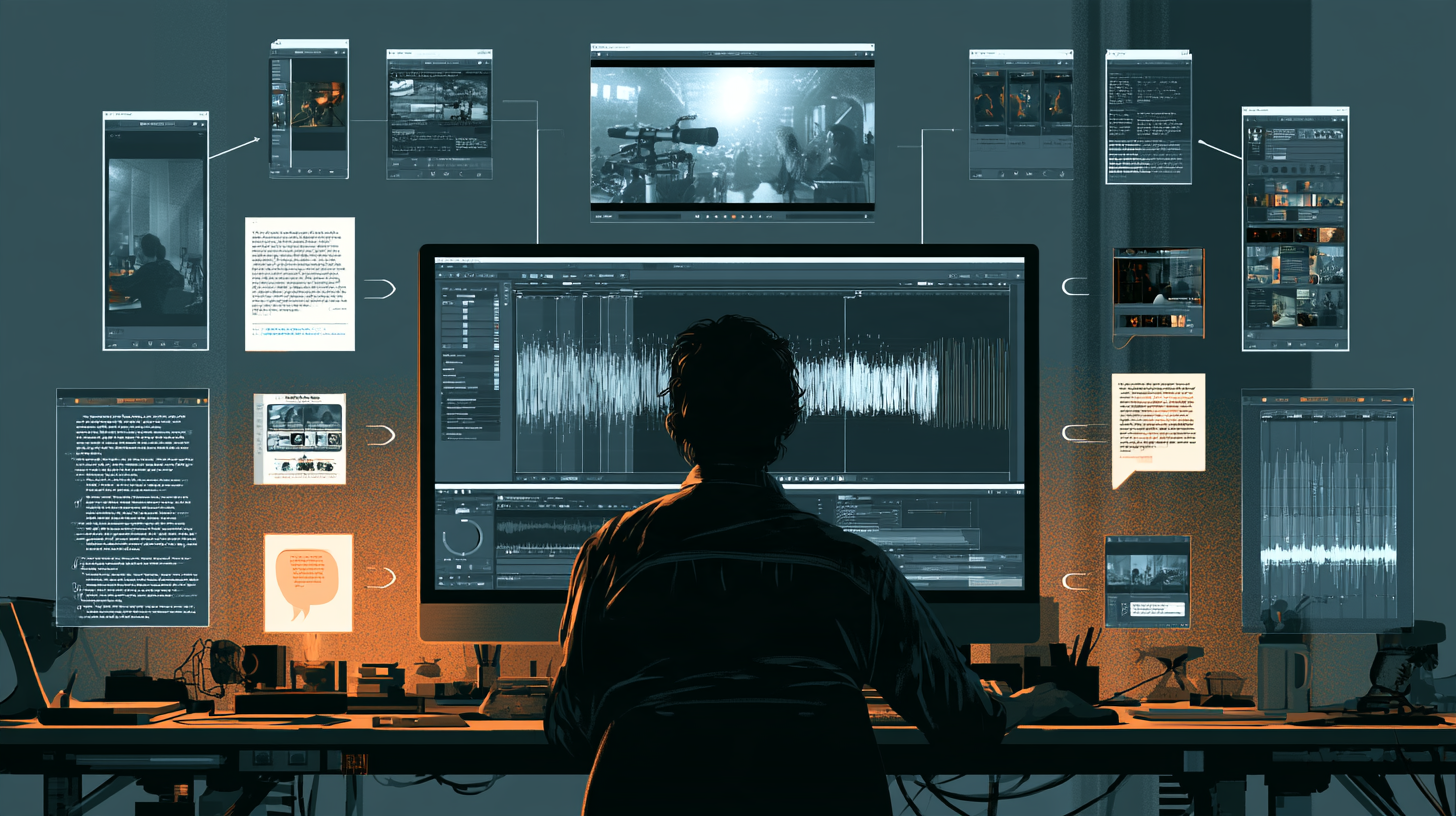
Instead of relying entirely on timeline navigation, creators can work with the spoken content represented as text.
This can be especially useful for interviews, podcasts, tutorials, and talking-head videos.
Example workflow
Imagine recording a 30-minute educational interview.
The speaker discusses several topics, repeats certain explanations, and occasionally loses their train of thought.
A transcript-based workflow allows the editor to review the spoken material as text and identify passages that should be removed or reorganized.
The creator can then refine the resulting edit.
Where this approach helps
Transcript editing is particularly valuable when the main content consists of dialogue.
It can make locating a specific sentence more efficient than repeatedly searching through the recording manually.
However, text-based editing does not remove the need to inspect visual continuity.
Removing a sentence can create an abrupt visual jump, especially in a single-camera interview.
3. CapCut: Accessible Editing and Automatic Captions
CapCut is widely used for social media and general video editing.
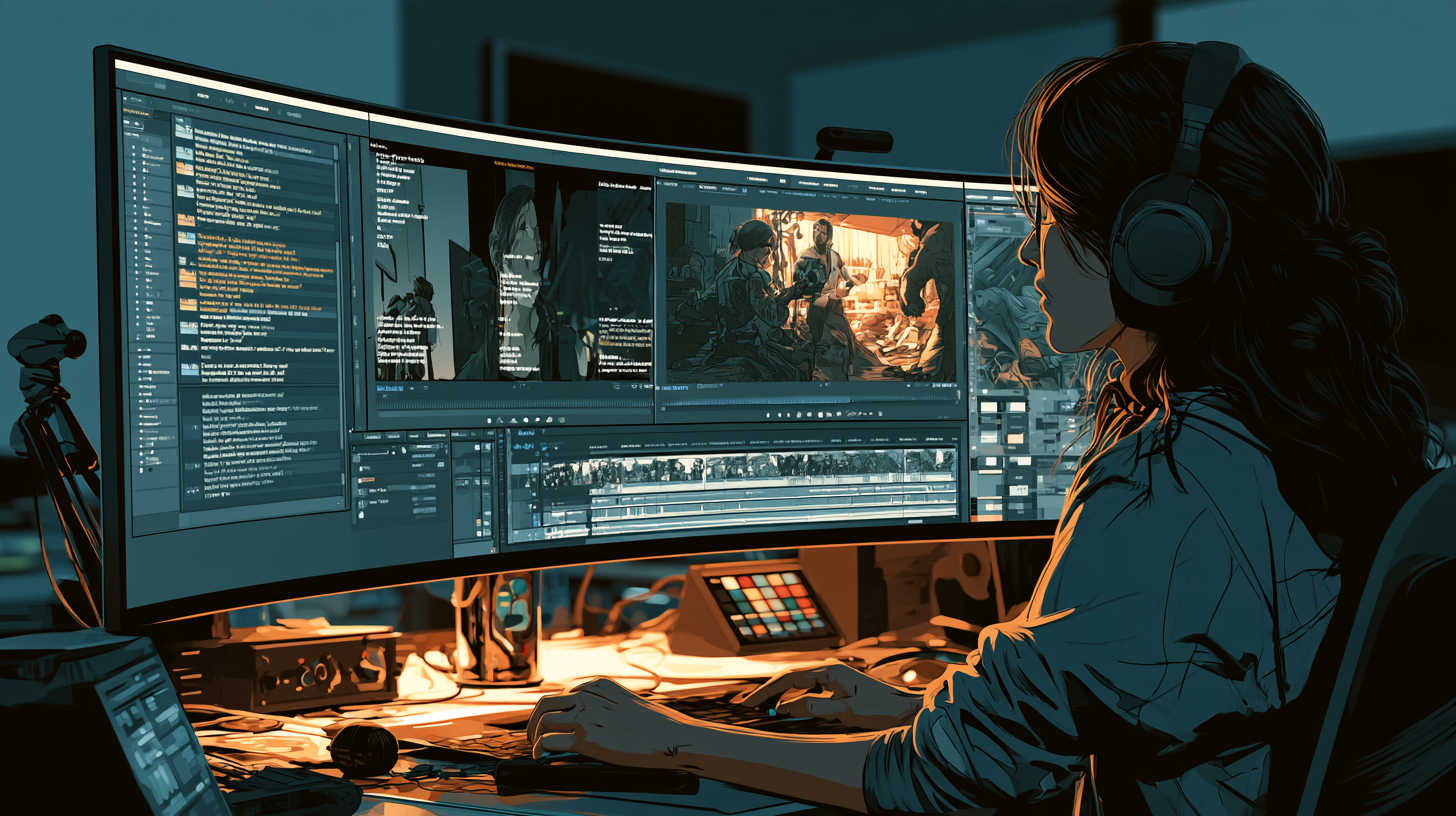
Its feature set includes timeline editing and AI-assisted tools such as automatic captions.
CapCut's official documentation describes automatic caption generation and manual correction on supported desktop, mobile, and web workflows.
Example workflow
A creator records a short tutorial explaining a smartphone application.
They import the recording into CapCut, trim unwanted sections, and generate captions.
Afterward, they inspect the text and correct any errors.
The finished video can then be exported in the appropriate format.
Why caption correction matters
Automatic speech recognition can misinterpret words.
CapCut specifically identifies factors such as background noise, accents, fast speech, and low audio quality as possible causes.
Technical terms, brand names, and unfamiliar personal names may require additional attention.
Captions should always be reviewed before publishing.
4. Adobe Premiere Pro: Professional Timeline Editing With AI Assistance
Adobe Premiere Pro is a professional nonlinear video editing application.
It supports detailed timeline editing, audio workflows, media organization, and integration with other production tools.
Adobe has expanded AI-assisted capabilities within Premiere.
Its September 2026 documentation includes the Generative Media Tool, which can generate video and sound effects directly in the timeline using supported models.
Adobe also describes Paper Edit, which allows editors to build sequences from selected transcript passages.
Why timeline integration matters
A professional editor may already have a documentary sequence assembled.
If a short visual element is missing, generating it within the editing environment may reduce the need to move between applications.
Similarly, transcript-based assembly can help organize interviews before detailed visual editing.
These features complement traditional editing rather than eliminate it.
5. Understanding Transcript-Based Editing
Transcript-based editing is particularly useful when the content is primarily spoken.
Consider a 45-minute interview with three major topics.
The creator could review the transcript, identify the strongest passages, and organize a shorter narrative.
Advantages
- Easier navigation through spoken material
- Faster identification of unwanted passages
- Useful for interviews and podcasts
- Helps organize long recordings
- Supports script-driven editing decisions
Limitations
A transcript cannot fully communicate facial expressions, camera framing, or visual continuity.
The editor must still watch the footage.
Speech recognition can also produce errors.
Names, accents, and overlapping voices require particular attention.
6. Understanding Automatic Captions
Automatic captions convert detected speech into timed text.
This can reduce the manual work involved in preparing subtitles.
However, automatically generated captions should not be treated as final.
Caption quality checklist
Check spelling, punctuation, timing, line breaks, and readability.
Make sure captions do not cover important interface controls or visual details.
For multilingual content, verify that the selected language and transcription results are appropriate.
If a creator uses AI narration, captions should be checked against the final approved audio rather than an earlier script draft.
The narration may contain corrections or changes that are not reflected in the original text.
7. Understanding Generative Media Editing
Generative media tools create new content instead of only rearranging existing recordings.
Adobe's Generative Media Tool supports generating video and sound effects within Premiere using text instructions and supported models.
For example, an editor may need a brief establishing shot of a fictional city.
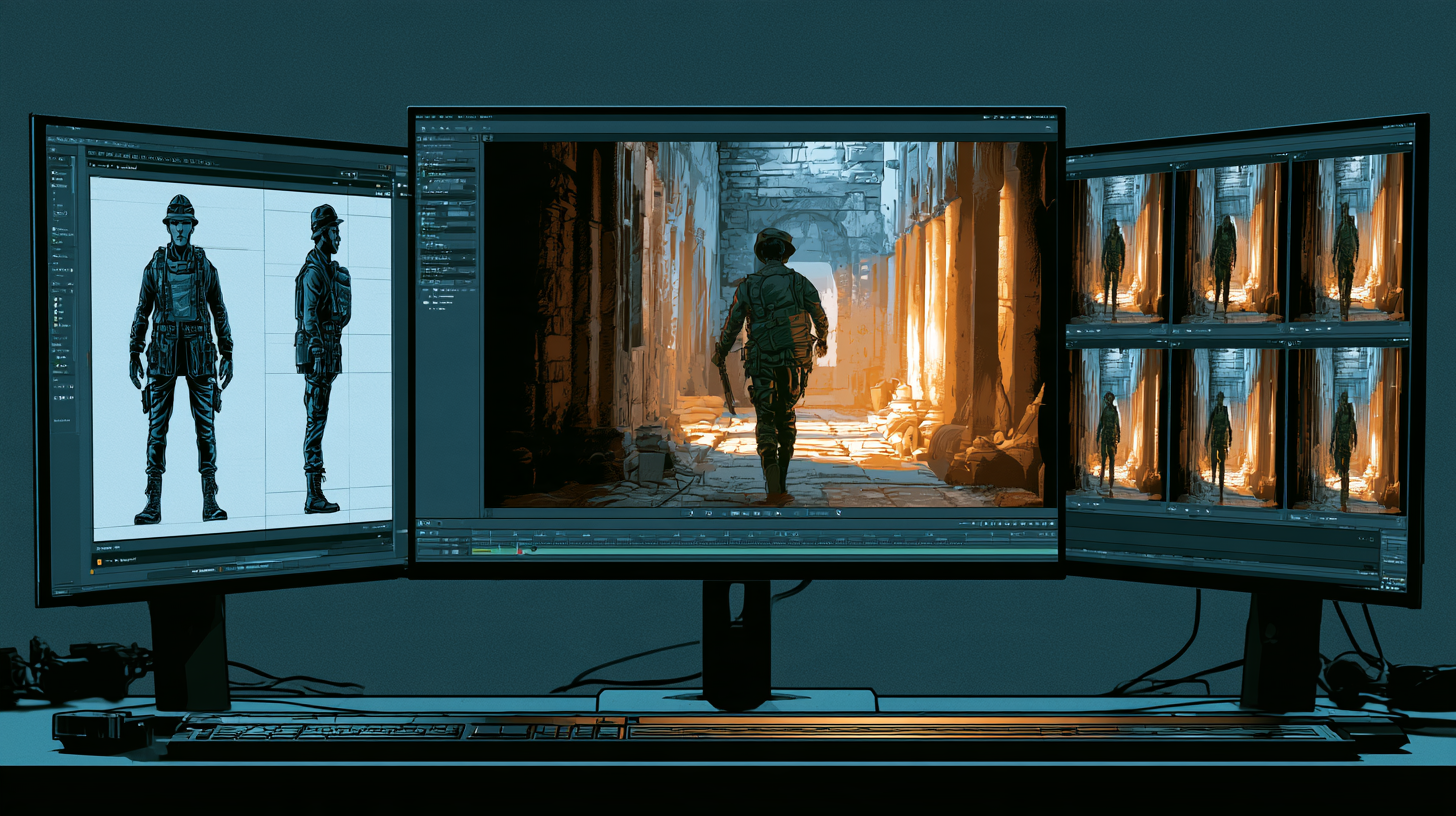
A generative tool can create an illustrative clip to fill that narrative role.
Important distinction
Generated footage is not automatically factual evidence.
If a documentary uses synthetic imagery to depict a historical event, the production should avoid presenting that imagery as authentic archival footage.
Creators must also consider applicable AI disclosure requirements.
8. Comparing Descript, CapCut, and Premiere
| Editing requirement | Tool worth evaluating | |---|---| | Dialogue-heavy podcasts | Descript | | Interview transcription workflows | Descript or Premiere | | Social video captions | CapCut | | Mobile-oriented editing | CapCut | | Complex multitrack productions | Premiere | | Generated media within the timeline | Premiere | | Quick educational video edits | CapCut or Descript | | Professional documentary assembly | Premiere |
These are workflow recommendations rather than exclusive capabilities.
Actual features, account eligibility, and subscription requirements should be checked before choosing a platform.
9. Which Editor Is Best for YouTube Creators?
The answer depends on the video format.
Talking-head videos
If most of the content consists of a person speaking to the camera, transcript editing can be valuable.
Descript is worth considering.
Short social videos
If the priority is quick editing, captions, and vertical content, CapCut may be a practical option.
Long-form documentaries
If the production contains narration, numerous visual layers, archival material, generated clips, music, and complex sound design, Premiere's traditional timeline and advanced editing tools may be more suitable.
Podcasts
Audio quality, transcript navigation, and efficient removal of unwanted passages may be more important than visual effects.
Descript and other transcript-based workflows are worth evaluating.
10. Can AI Editing Replace Human Editors?
AI can assist with repetitive and technically demanding tasks.
But editorial decisions still require judgment.
An automatic system may identify a pause as unnecessary.
A human editor may recognize that the pause communicates emotion or allows viewers to absorb important information.
Similarly, an automatically generated visual might be attractive but historically inaccurate.
A good editor evaluates narrative structure, pacing, continuity, sound, and the audience's experience.
AI assistance can improve efficiency, but the creator remains responsible for the finished production.
11. A Practical Editing Test
Before committing to a subscription, test each application with the same short recording.
Use a three-minute talking-head video.
The recording should include:
- A clear introduction
- Several intentional pauses
- A repeated sentence
- One technical term
- A section requiring captions
Test procedure
Import the recording into each application you are considering.
Create a shorter edit.
Generate captions if supported.
Correct transcription mistakes.
Add a simple title and background music.
Export the result.
Record your findings
| Evaluation | What to measure | |---|---| | Editing time | Minutes of active work | | Caption accuracy | Corrections required | | Usability | Ease of finding controls | | Export quality | Resolution and audio | | Workflow | Number of manual steps | | Cost | Subscription and paid features |
The best tool is not necessarily the one with the longest feature list.
It is the one that helps you complete the required work reliably.
12. Common AI Editing Mistakes
Trusting captions without checking them
Speech recognition can misinterpret names, accents, and technical language.
Removing every pause
Some pauses are necessary for comprehension and emotional pacing.
Overusing automated effects
Transitions and effects should support the content.
Ignoring visual continuity
Removing dialogue can create abrupt changes between adjacent frames.
Generating unnecessary footage
New AI clips can increase cost and complexity without improving the story.
Failing to review licensing
Music, stock footage, and generated media may have different usage conditions.
Skipping final export checks
A video may contain missing media, incorrect captions, or audio problems that were not obvious during editing.
13. A Practical Workflow for a 10-Minute YouTube Video
Consider a creator producing a ten-minute educational video.
Stage 1: Prepare the narration
Record or generate the complete audio.
Stage 2: Organize the content
Use a transcript to identify sections and remove unnecessary repetition.
Stage 3: Build the timeline
Arrange narration and visual assets in the intended order.
Stage 4: Add supporting visuals
Use screen recordings, original footage, licensed material, or appropriately identified AI-generated clips.
Stage 5: Generate captions
Use the editor's supported captioning tools.
Stage 6: Correct the captions
Review spelling, timing, and technical terms.
Stage 7: Mix audio
Balance dialogue, music, and sound effects.
Stage 8: Export and review
Watch the final file before publishing.
Different applications can handle different parts of this workflow.
Creators do not need to use every available AI feature.
14. Cost and Subscription Considerations
Video editing software can use several pricing models.
These may include free plans, monthly subscriptions, annual subscriptions, feature-based credits, or separate charges for generative AI.
Before subscribing, check:
- Supported operating systems
- Export restrictions
- Watermarks
- Caption limits
- AI credit allowances
- Commercial usage terms
- Cloud storage requirements
- Cancellation and renewal conditions
Avoid choosing a tool based on an outdated promotional price.
The total cost depends on the features you actually use.
15. A Final Decision Framework
Ask three questions before choosing an AI video editor.
What kind of videos do I make?
A podcast has different requirements from a cinematic documentary.
Which tasks consume the most time?
Transcription, caption correction, rough cutting, and visual generation are separate problems.
How much control do I need?
Some creators prioritize simplicity. Others need detailed timeline control and professional delivery options.
Answering these questions will usually narrow the choices more effectively than searching for one universally best AI editor.
Final Thoughts
Descript, CapCut, and Adobe Premiere Pro demonstrate three different approaches to AI-assisted editing.
Descript emphasizes working with spoken content through text.
CapCut offers accessible editing with practical features such as automatic captions.
Premiere combines professional timeline editing with expanding AI-assisted and generative capabilities.
Each approach can be valuable.
The right choice depends on your content, workflow, technical requirements, and budget.
AI editing should remove unnecessary work—not remove the creator's control over the story.
Official Sources and Further Reading
- Descript — Official Website and Editing Features
- CapCut — Official Website
- CapCut — How to Fix Inaccurate Auto-Captions
- Adobe — What's New in Premiere
- Adobe — Generative Media Tool Overview
- Adobe — Generative Extend Overview
Product interfaces, AI allowances, and subscription terms may change after publication.