How to Animate AI Images Into Videos Without Losing Character Consistency
Updated: October 29, 2026 | Category: AI Video Apps
One of the most frustrating problems in AI filmmaking happens when a beautiful still image becomes an inconsistent animated clip.
A character may look convincing in the original image, but after animation, the face changes, the costume shifts, or the hands become distorted.
The problem becomes more noticeable when the same character appears in several scenes.
A documentary reconstruction, fictional short film, or cinematic YouTube production needs visual continuity.
The audience should recognize the character from one shot to the next.
Although no image-to-video system guarantees perfect consistency, creators can reduce unnecessary changes by preparing better references, simplifying motion, and reviewing each generation carefully.
This guide explains a repeatable workflow.
1. Why AI Characters Change During Animation
An image-to-video model generates a sequence of new frames based on an input image and motion instructions.
The input image establishes the starting composition, but the model must infer what happens as subjects move.
For example, a front-facing portrait does not fully reveal the shape of a person's ears, hairstyle from behind, or clothing on the opposite side.
When the subject turns, the model must generate visual information that was not visible in the original image.
This can introduce differences.
Common problems include:
- Changing facial proportions
- Different eye or nose shapes
- Clothing details appearing or disappearing
- Inconsistent hair length
- Altered accessories
- Distorted hands
- Background objects changing position
These issues are particularly noticeable when animation requires large changes in viewing angle.
2. Start With a Character Reference Sheet
Before generating a long series of images, establish the character's identity.
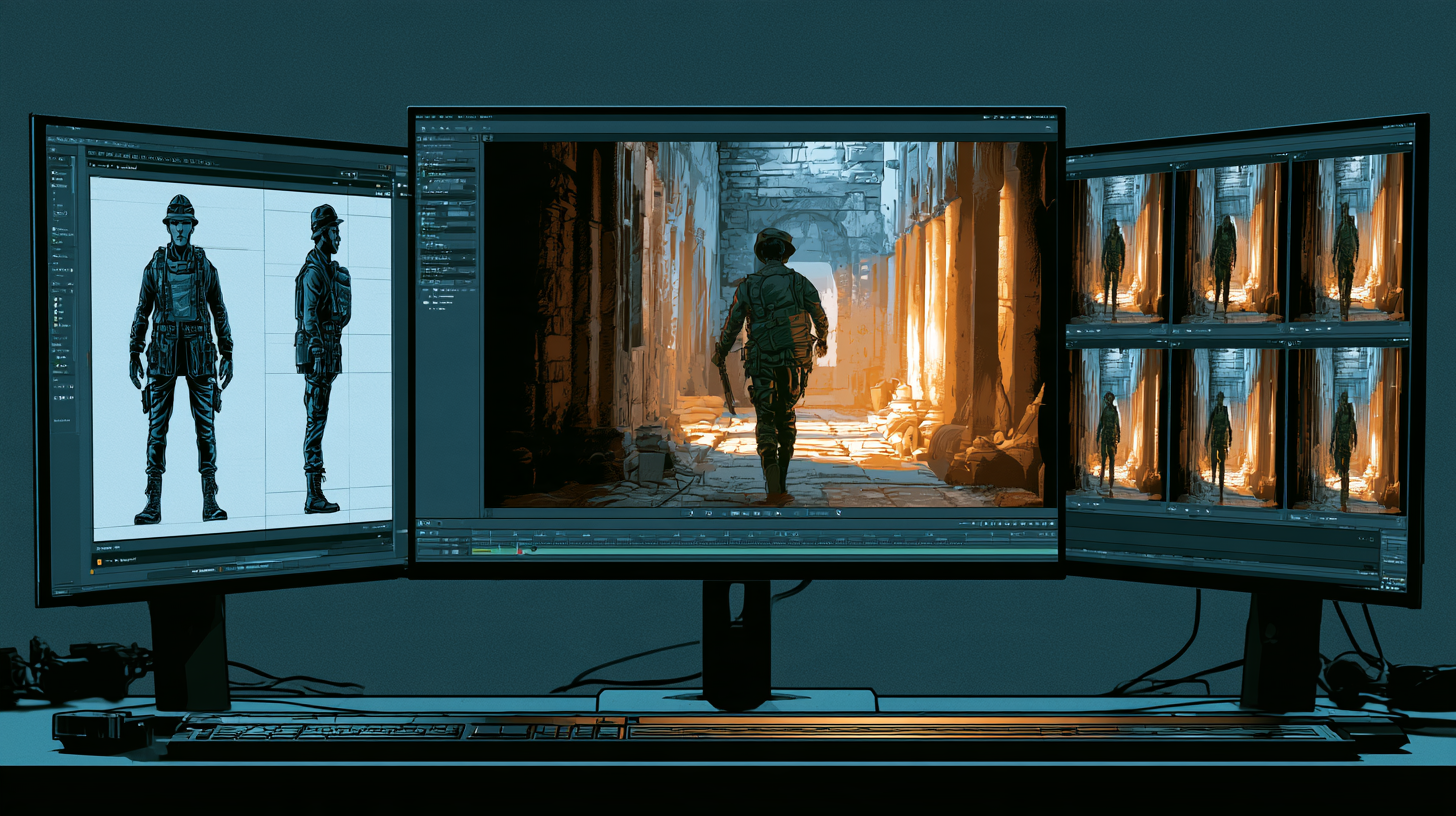
A character reference sheet should include several useful views.
For example:
Character: Elias, fictional explorer, approximately 40 years old.
Face: Angular features, dark eyes, short beard.
Hair: Short black hair with slight grey at the temples.
Distinctive detail: Small scar above the left eyebrow.
Costume: Brown leather jacket, charcoal shirt, dark trousers.
Visual style: Realistic cinematic illustration with cool shadows and warm highlights.
Generate or collect reference images showing front, profile, and three-quarter views where possible.
These references can help guide future generations in tools that support multiple images or character references.
However, reference images are guidance rather than a guarantee of identity preservation.
3. Design a Continuity Bible
A continuity bible documents the rules that should remain consistent throughout a project.
It can include:
| Element | Continuity rule | |---|---| | Character identity | Preserve approved facial features | | Hair | Same cut and color | | Costume | Same outfit until story requires change | | Accessories | Maintain position and appearance | | Location | Preserve architectural design | | Lighting | Follow scene time and mood | | Visual style | Consistent rendering approach | | Aspect ratio | Match the editing project |
This document becomes especially useful when scenes are generated on different days or across multiple AI tools.
Without a continuity guide, small inconsistencies can accumulate across the finished video.
4. Choose the Right Starting Image
The quality of the starting image has a direct influence on the animation process.
Runway's official image-to-video guidance explains that the image establishes the subject, composition, lighting, and style.
It also warns that visual artifacts in the starting image may become more noticeable during animation.
Inspect the image before generating motion
Check facial anatomy, hands, clothing, background objects, and lighting.
Avoid using a starting image that already contains distorted fingers or inconsistent facial features.
Consider whether the pose supports the movement you intend to generate.
For example, a character standing naturally is generally a more straightforward starting point for a subtle head turn than a character frozen in a complex mid-action pose.
5. Understand What an Animation Prompt Should Describe
An image-generation prompt describes what a scene should look like.
An image-to-video prompt should focus primarily on what happens after the image begins moving.
Runway's documentation specifically recommends concentrating on motion, camera behavior, and temporal progression.
Example image prompt
"A fictional explorer stands inside an ancient stone corridor, holding a lantern. Cinematic lighting, weathered walls, realistic anatomy, medium shot."
Example animation prompt
"The camera slowly moves forward. The explorer remains mostly still, raises the lantern slightly, and looks toward the far end of the corridor. The lantern flame flickers gently."
The second prompt describes movement rather than repeating every visual detail already present.
6. Use Controlled Motion Before Complex Action
When preserving character identity is important, begin with simple movement.
Examples include:
Slow push-in: The camera gradually moves closer to the subject.
Gentle pan: The camera moves horizontally across a scene.
Subtle expression: The character slightly changes facial expression.
Environmental motion: Fog, smoke, rain, or fabric moves gently.
Small physical action: The character raises a hand or turns slightly.
These actions are often easier to evaluate than complex movement involving several subjects and rapid camera changes.
That does not mean complicated actions are impossible.
It means they generally introduce more variables.
7. Write Clear Motion Prompts
A useful motion prompt should identify the most important action and camera behavior.
Prompt A: Portrait animation
"The camera remains locked. The subject breathes naturally and slowly turns their gaze toward the right. Subtle facial movement, restrained realistic motion."
Prompt B: Cinematic environment
"The camera glides slowly forward through the ancient hallway. Dust particles drift through the sunlight. The architecture remains stable throughout the shot."
Prompt C: Character walking
"The camera tracks alongside the character as they walk slowly through the courtyard. Natural walking motion, steady camera movement, consistent clothing."
These prompts are starting points, not guaranteed solutions.
If the result contains unwanted changes, simplify the movement and try again.
8. Avoid Overloading One Generation
A common mistake is requesting several complicated events in a single short clip.
For example:
"The character runs down a corridor, turns around, draws a sword, fights three enemies, jumps over a wall, and the camera circles around him."
That is a substantial sequence for a short generated shot.
A more practical approach is to divide the action.
Shot 1: Character runs down the corridor.
Shot 2: Character stops and looks behind.
Shot 3: Close-up of the character reaching for the sword.
Shot 4: Wide shot establishing the confrontation.
Each shot can be reviewed independently.
The finished sequence is then assembled in an editor.
This approach also makes it easier to replace one unsuccessful shot without regenerating everything.
9. Use Reference Images Where Supported
Some AI video systems support multiple reference images or reference-guided generation.
Google's Veo documentation describes using reference images to guide character appearance, objects, and visual style.
Reference support varies by product interface and model.
When available, provide clear, consistent images rather than several contradictory character designs.
For example, avoid supplying one reference with a clean-shaven character and another with a full beard unless the story requires a transformation.
Reference images should reinforce the intended identity.
10. Understand the Difference Between Camera Movement and Character Movement
A shot can feel cinematic even when the character barely moves.
Consider a fictional warrior standing in a ruined courtyard.
Instead of making the warrior walk, turn, shout, and raise a weapon, the creator might use a slow camera push-in while dust moves through the environment.
This produces visual activity without requiring the model to invent extensive new anatomy.
When to favor camera movement
Use camera motion when the image already communicates the scene and only needs additional depth or emphasis.
When to favor character movement
Use character motion when the action is essential to the story.
The best choice depends on the narrative purpose of the shot.
11. Create Longer Sequences From Short Clips
Many AI video generators produce relatively short clips.
Runway's Gen-4.5 documentation, for example, describes supported durations between two and ten seconds.
Longer scenes may require multiple generations.
One technique is to extract the final frame of an approved clip and use it as the starting image for the next generation.
Runway documents this approach in its image-to-video prompting guidance.
Example workflow
- Generate a five-second corridor shot.
- Review and approve it.
- Extract its final frame.
- Use that frame as the next generation's starting image.
- Describe the next movement.
- Generate the continuation.
- Combine the clips in an editor.
Important limitation
Continuing from a previous frame can introduce cumulative visual changes.
A character's appearance may gradually drift over multiple generations.
For this reason, periodically compare the result against the original approved reference.
If necessary, regenerate from a clean master image rather than extending an increasingly inconsistent clip.
12. Review Every Generated Clip
A technically successful generation may still be unsuitable for the project.
Use a simple quality-control checklist.
| Check | Question | |---|---| | Face | Does the character still look recognizable? | | Costume | Are important details preserved? | | Motion | Does the movement look natural? | | Hands | Are fingers and gestures plausible? | | Environment | Do objects remain consistent? | | Camera | Does the movement match the intention? | | Duration | Does the shot fit the narration? | | Story | Does the clip communicate the intended event? |
Do not approve a clip solely because it looks impressive.
It must also fit the surrounding sequence.
13. Organize Your Files for Continuity
A structured project folder helps prevent confusion.
Example:
Project Name
→ Character References
→ Environment References
→ Approved Images
→ Generated Video Clips
→ Rejected Generations
→ Narration
→ Music and Sound
→ Editing Project
→ Final Exports
Use consistent filenames.
For example:
SCENE_014_IMAGE_APPROVED.png
SCENE_014_MOTION_V02.mp4
SCENE_014_FINAL.mp4
This makes it easier to identify which generation belongs to which scene.
14. Control Your Generation Budget
Repeatedly regenerating the same scene can become expensive.
Before spending more credits, identify the actual problem.
If the face changes during a turn, try reducing the turn angle.
If the background becomes unstable, simplify the camera movement.
If the starting image contains distorted anatomy, fix the image first.
If a complex action repeatedly fails, divide it into shorter shots.
Example credit calculation
At Runway's documented Gen-4.5 rate of 12 credits per second:
- One five-second generation uses 60 credits.
- Three attempts use 180 credits.
- Ten scenes requiring three attempts each use 1,800 credits.
These figures do not include other model costs or subscription pricing.
A continuity-first workflow can help reduce avoidable regeneration.
15. A Practical Five-Scene Character Test
Before producing a long AI film, create a small continuity test.
Use one fictional character and five scenes:
Scene 1: Front-facing portrait with subtle breathing.
Scene 2: Three-quarter view with a small head movement.
Scene 3: Medium shot inside a room.
Scene 4: Slow walking shot.
Scene 5: Close-up showing a meaningful reaction.
Compare the character's appearance across all five.
If the identity remains sufficiently consistent for your project, expand the workflow.
If not, adjust the reference images, shot design, or generation settings before investing in dozens of scenes.
16. Common Mistakes to Avoid
Using different character descriptions for every scene: This introduces unnecessary variation.
Changing visual styles between shots: Different rendering approaches can make a character appear inconsistent.
Animating defective images: Existing artifacts may become worse.
Demanding too much movement: Complex action creates more opportunities for unwanted changes.
Extending clips indefinitely: Visual drift can accumulate.
Ignoring continuity during editing: Even individually attractive shots may not match one another.
Assuming references guarantee consistency: Reference-guided generation still requires inspection.
Final Thoughts
Character consistency is one of the central challenges of AI filmmaking.
The most reliable approach is not to rely on a single perfect prompt.
It is to build a controlled production system.
Start with approved references. Establish continuity rules. Generate strong starting images. Use clear motion instructions. Review every clip. Assemble the final sequence carefully.
AI video generation can create remarkable movement, but it still requires direction and quality control.
Consistency comes from the workflow, not from a promise that the model will never make mistakes.
Official Sources and Further Reading
- Runway — Image-to-Video Prompting Guide
- Runway — Creating With Gen-4.5
- Runway — Text-to-Video Prompting Guide
- Google DeepMind — Veo
For related reading, see our Creator Hub guide: How to Keep AI Characters Consistent Across Images.