Best AI Video Generators for Creators in 2026: Runway, Google Veo, Pika, and More
Updated: October 29, 2026 | Category: AI Video Apps
AI video generation has become an increasingly practical production option for independent filmmakers, YouTubers, advertisers, educators, and social media creators.
Instead of recording every shot with a camera, creators can now generate short video sequences from written instructions, still images, or visual references.
However, choosing the right application is not as simple as selecting the platform with the most impressive promotional videos.
Different tools provide different levels of control over character appearance, motion, camera movement, sound, and editing.
Some are designed for cinematic shot generation. Others emphasize creative effects, rapid experimentation, or integration with established editing software.
This guide compares several important AI video platforms and explains how to evaluate them for real production work.
1. What Is an AI Video Generator?
An AI video generator uses a generative model to create moving images from instructions or reference material.
The two most common workflows are:
Text-to-video: A creator describes a scene, including its subject, environment, action, and camera movement. The model generates a video based on that description.
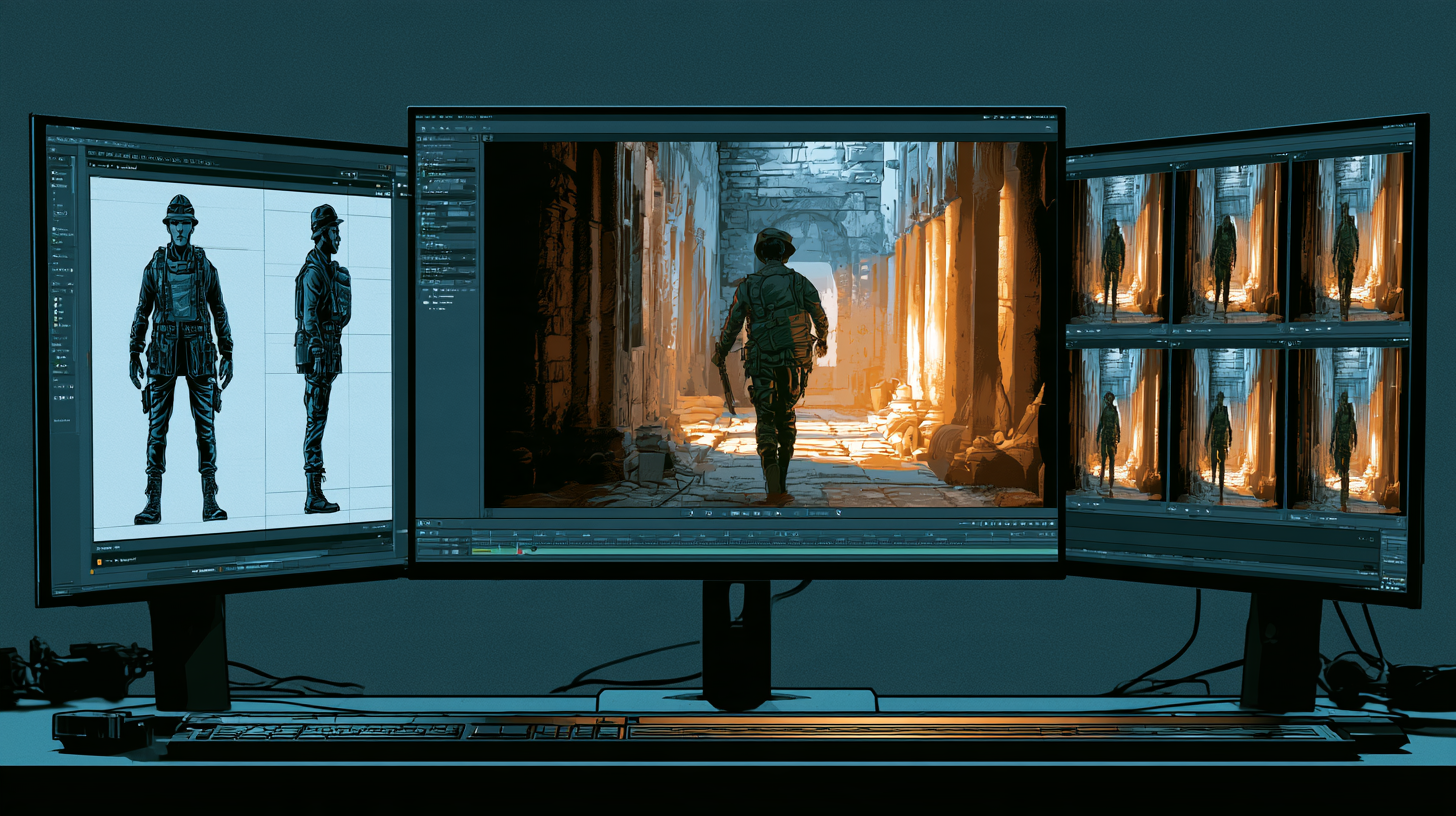
Image-to-video: A creator supplies an existing image and describes how its subjects, environment, or camera should move.
Other workflows may support multiple references, first-and-last frames, existing-video editing, or synchronized audio.
These capabilities vary by model and application.
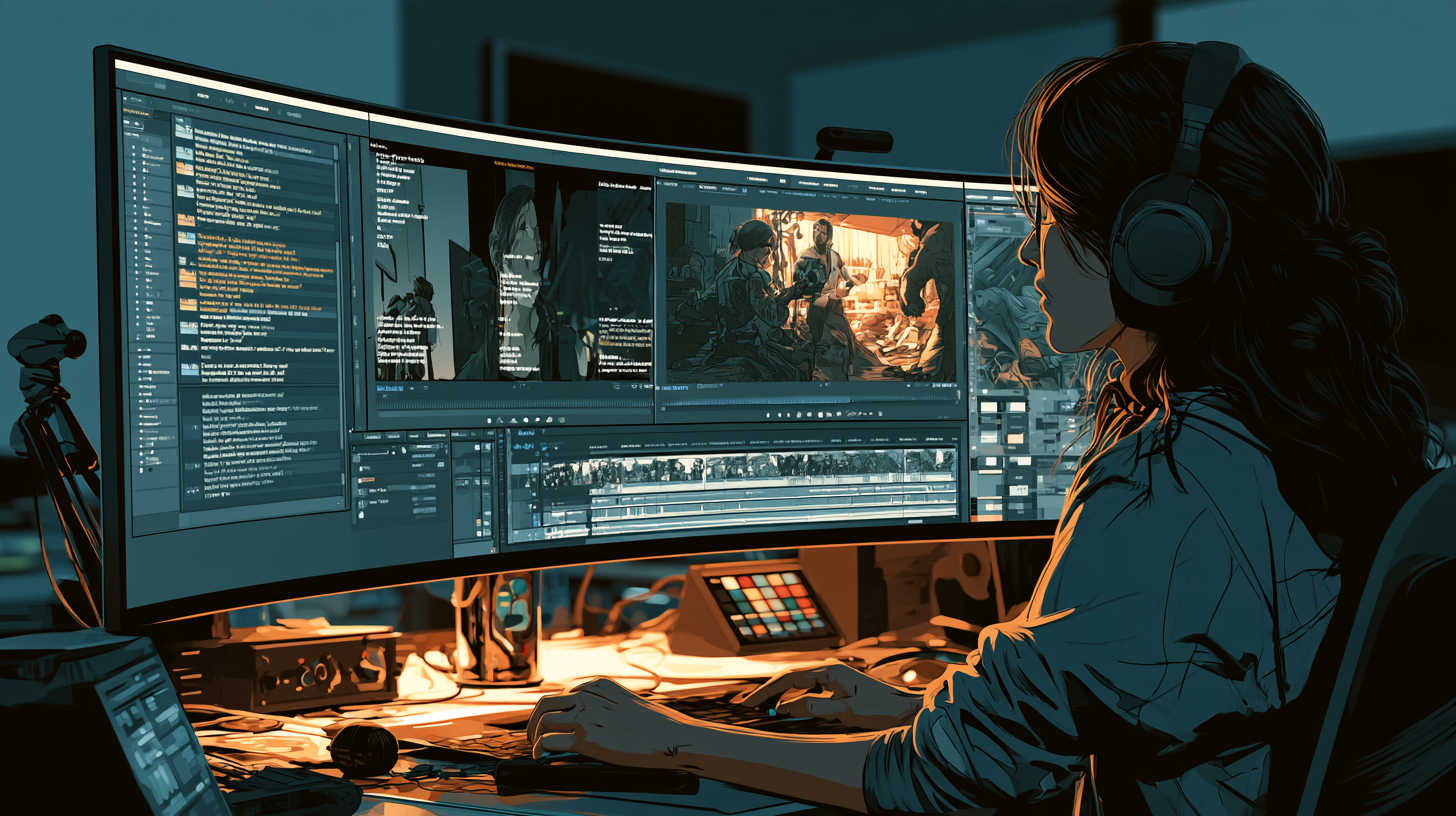
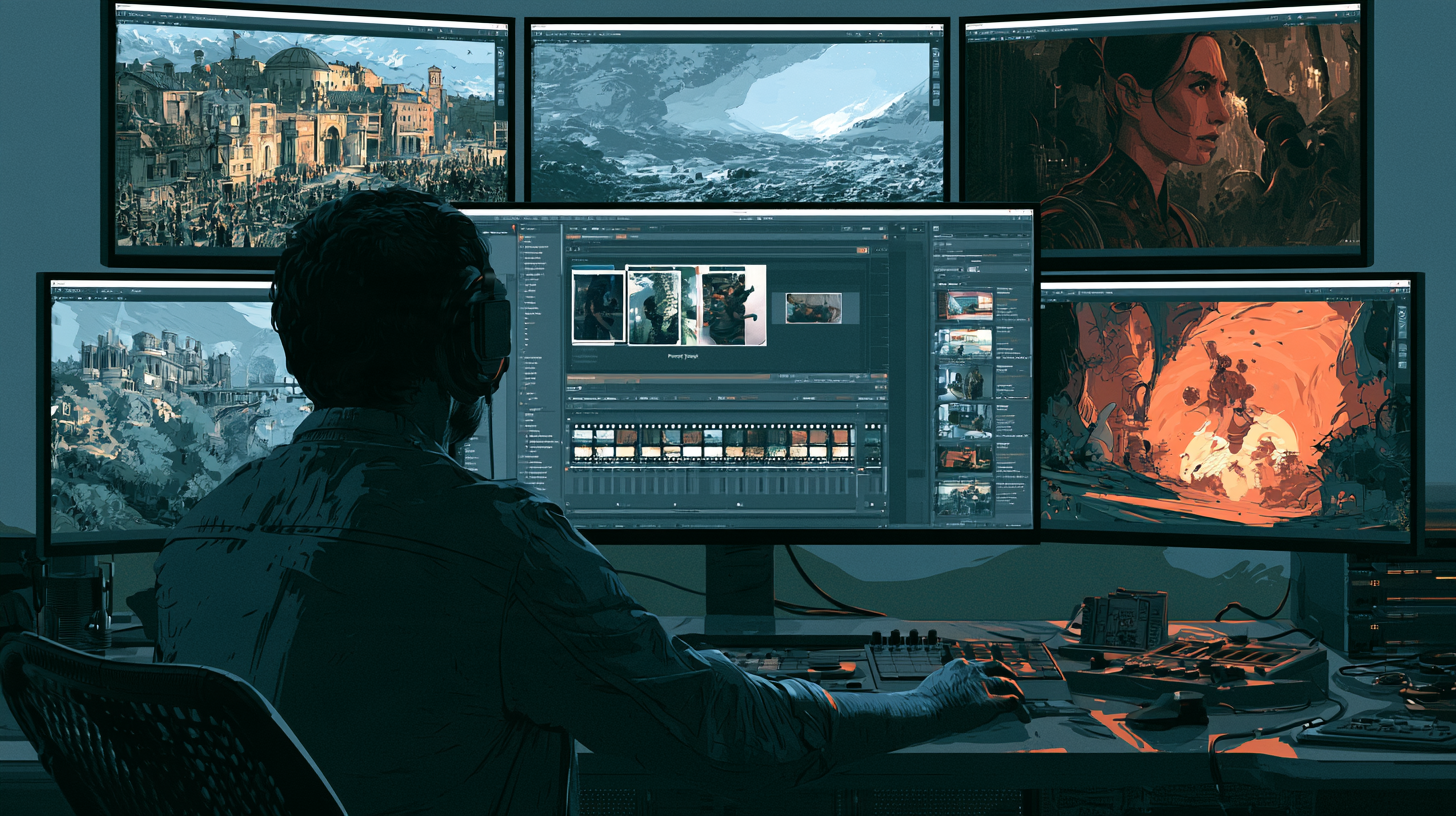
An important distinction: generating a video clip is not the same as editing a complete film. Most creators still need a timeline editor to assemble shots, narration, music, graphics, and transitions.
2. Runway: A Strong Option for Controlled Cinematic Shots
Runway offers generative video models and tools aimed at creative production.
Its Gen-4.5 documentation describes text-to-video and image-to-video generation, with support for detailed motion and camera instructions.
For the documented Gen-4.5 workflow, Runway lists:
- Clip durations from 2 to 10 seconds
- A generation rate of 12 credits per second
- 720p output
- Multiple aspect ratios for image-to-video
- Support for camera and motion descriptions
These specifications apply to the particular documented model and may differ for other models or plans.
Where Runway fits
Runway is worth evaluating for projects that need carefully directed short shots.
Examples include atmospheric establishing shots, character close-ups, environmental movement, and cinematic transitions.
A documentary creator might animate an illustration of an ancient harbor, while a fictional filmmaker might create a slow camera movement toward a character.
Important limitation
A successful image-to-video generation does not guarantee perfect character identity or physically accurate motion.
Complex interactions, fast movement, and crowded scenes can require additional attempts.
Best suited to: Creators who want to direct individual cinematic shots and are comfortable reviewing multiple generations.
3. Google Veo: Video Generation With Audio and Reference Controls
Google Veo is Google's generative video model family.
Google's official Veo 3.1 materials describe text-to-video and image-to-video generation, including synchronized audio.
Google also describes reference-image capabilities for guiding characters, objects, and visual style.
Additional capabilities highlighted on its official product page include scene extension, first-and-last-frame guidance, and camera controls.
Not every feature is necessarily available through every interface or subscription.
Veo can be accessed through supported Google products and developer services, depending on availability.
Why native audio matters
Traditional image-to-video workflows often require creators to generate visuals first and add sound later.
Native audio generation can produce audiovisual content together.
That may be useful for environmental sound, dialogue experiments, or short scenes where sound and action need to feel connected.
However, Google's own documentation acknowledges continuing limitations with natural and consistent spoken audio.
Where Veo fits
Veo is worth testing for cinematic scenes where audio is part of the creative concept, or where reference-guided generation is important.
Best suited to: Creators exploring integrated audiovisual generation and reference-based cinematic production.
4. Pika: Creative AI Video Experiments
Pika is another AI video creation platform.
It is useful to include in a comparison because not every creator needs the same kind of cinematic production workflow.
Some projects prioritize stylized visual experiments, short social clips, transformations, or playful effects.
Pika is a platform worth investigating for those purposes.
However, creators should verify its current model selection, output limits, supported effects, subscription restrictions, and commercial terms directly before purchasing.
These details can change as the platform develops.
A practical test
Create a short clip from a simple reference image and evaluate whether the result preserves the original subject while producing the desired motion.
Then compare the cost and effort against generating a similar shot in another application.
Best suited to: Creators experimenting with short-form visual concepts and effects, subject to the capabilities available on their account.
5. Adobe Firefly and Premiere: Generation Inside an Editing Workflow
Adobe Firefly provides generative creative tools.
Adobe has also expanded AI generation directly inside Premiere.
Its September 2026 documentation describes a Generative Media Tool that allows supported video and sound-effect generation from within the editing timeline.
Creators can describe the media they need, select a supported model, and insert the result into their sequence.
Adobe also documents Generative Extend, which can add a limited amount of generated material to the beginning or end of supported clips.
Why this approach is different
Instead of generating a collection of clips in one application and importing them into another, an editor can create some additional media within the existing project.
That may be especially useful when a specific shot or sound effect is missing during editing.
Important limitation
Generative Extend is not an unlimited clip-lengthening system.
Its media requirements, restrictions, and supported operations must be checked before use.
Best suited to: Editors who already work in Premiere and want AI-assisted generation integrated into their timeline.
6. AI Video Generator Comparison
| Platform | Primary strength to evaluate | Important consideration | |---|---|---| | Runway | Directed cinematic clip generation | Credits, retries, motion consistency | | Google Veo | Reference-guided video and native audio | Product access, audio reliability | | Pika | Short-form creative experimentation | Current feature and plan verification | | Adobe Firefly / Premiere | Generation integrated with editing | Software access, supported models and media |
This is a workflow comparison, not a laboratory performance ranking.
No universal winner can be established without testing identical prompts, reference images, settings, and budgets across the available models.
7. Text-to-Video or Image-to-Video: Which Should You Choose?
Text-to-video is useful when you do not have a predetermined composition.
For example:
"A wide cinematic shot of an abandoned lighthouse on a rocky coast during a storm. The camera moves slowly toward the building as waves crash against the cliffs."
The model must interpret the environment and generate its visual design.
Image-to-video begins with a more defined starting point.
If you already have a lighthouse illustration that matches your project, you can animate that image rather than ask the model to invent a new composition.
Practical recommendation
Use text-to-video when exploring visual concepts.
Use image-to-video when preserving an approved composition, character, or art style is more important.
Neither method guarantees consistency.
8. How to Test an AI Video App Before Subscribing
Avoid judging a platform from its promotional gallery alone.
Prepare three representative production tests.
Test A: Environmental shot
Generate a five-second landscape scene with subtle camera movement.
Evaluate architecture, lighting, motion, and overall coherence.
Test B: Character shot
Animate a reference portrait with a small head movement.
Evaluate facial identity, eyes, hands, clothing, and unwanted distortions.
Test C: Action shot
Generate a person walking through an environment.
Evaluate body movement, interaction with the ground, and scene continuity.
Record the results in a comparison table.
| Test | What to record | |---|---| | First usable result | Number of attempts | | Identity consistency | Visible changes to subject | | Motion | Natural or distorted | | Prompt adherence | Whether requested action occurred | | Export | Resolution, format, watermark | | Cost | Credits or money consumed |
This provides more useful evidence than a generic ranking.
9. Understand the Real Cost of AI Video Generation
AI video generation can be expensive when a production requires many shots and multiple retries.
For example, Runway's documented Gen-4.5 rate is 12 credits per second.
A five-second clip therefore uses 60 credits.
Twenty five-second generations use 1,200 credits.
But twenty generated clips do not necessarily mean twenty approved clips.
If a creator must regenerate several scenes, the total cost rises.
Build a credit budget
Before starting, estimate:
- Number of shots required
- Average generated duration
- Credits per second
- Expected additional attempts
- Available subscription credits
- Whether higher-quality exports incur additional charges
Do not convert credits to dollars without checking the applicable subscription or credit-purchase terms.
10. Common Limitations of AI Video Apps
Even advanced systems can produce problems.
Character drift: A face, hairstyle, or costume changes during movement.
Physical inconsistencies: Hands, limbs, or objects behave unnaturally.
Unwanted camera movement: The model interprets a motion prompt differently than intended.
Scene discontinuity: Objects change position or disappear.
Speech problems: Generated dialogue may sound unnatural or fail to synchronize correctly.
Visual artifacts: Fine details become distorted during movement.
Limited duration: Generated clips may be much shorter than the finished video.
The appropriate response is not always to regenerate the same clip repeatedly.
Sometimes simplifying the movement, improving the reference image, or changing the shot design is more effective.
11. Choosing an App for Different Creator Projects
Historical documentaries
Prioritize visual references, coherent architecture, controlled camera movement, and the ability to combine generated footage with maps and sourced historical material.
Faceless YouTube channels
Prioritize predictable costs, repeatable workflows, and efficient production of supporting visuals.
Fictional cinematic stories
Prioritize character consistency, shot composition, environmental continuity, and controlled movement.
Short-form social videos
Prioritize fast experimentation, suitable vertical exports, and efficient iteration.
Professional editing projects
Prioritize integration with existing timelines, editable media, export options, and production reliability.
The best application is the one that meets the project's actual requirements at an acceptable cost.
12. Commercial Use and Publishing Responsibilities
Before publishing generated footage commercially, review the relevant platform's terms.
Important questions include:
- Does your plan permit commercial use?
- Are there restrictions on particular inputs or outputs?
- Can you use uploaded reference images legally?
- Are generated voices or likenesses authorized?
- Does your publishing platform require AI disclosure?
- Are there watermark or attribution conditions?
AI-generated video is not automatically free from copyright, likeness, or licensing concerns.
For realistic synthetic content, also review YouTube's disclosure requirements.
13. A Simple First-Project Workflow
For your first test, produce a 30-second cinematic sequence.
Write a short description of the scene.
Generate three approved images: an establishing shot, a character shot, and a detail shot.
Animate each image into a short clip.
Review the results.
Arrange the clips in a timeline editor.
Add original or licensed audio.
Export and watch the final video.
Record the total time, generation attempts, and credit consumption.
This small experiment can reveal whether the platform is practical before you commit to a longer production.
Final Thoughts
Runway, Google Veo, Pika, and Adobe's generative tools represent different approaches to AI-assisted video creation.
The most important decision is not which company has the most impressive demonstration.
It is which tool provides the right balance of creative control, reliability, accessibility, and cost for your specific work.
Start with representative tests. Measure actual results. Keep your production assets organized.
A good AI video generator creates useful shots. A good production workflow turns those shots into a coherent video.
Official Sources and Further Reading
- Runway — Creating With Gen-4.5
- Runway — Image-to-Video Prompting Guide
- Google DeepMind — Veo
- Pika — Official Website
- Adobe — Generative Media Tool in Premiere
- Adobe — Generative Extend Overview
Product features, pricing, and availability can change. Verify current plan details before purchasing.