How to Turn a Script Into an AI Video: A Complete Step-by-Step Workflow
Creating a video used to require cameras, lighting equipment, actors, recording sessions, and extensive post-production. Today, AI tools can assist with several of those tasks, making certain types of video production accessible to independent creators working from a computer.
But there is an important difference between generating an impressive five-second clip and producing a complete, coherent YouTube video.
A finished video needs more than attractive visuals. It needs a structured story, understandable narration, consistent characters, appropriate scene timing, clean audio, and a deliberate editing process.
This guide explains how to transform a written script into a finished AI-assisted video using a practical production workflow.
We will cover the tools involved, how to organize each production stage, realistic workload considerations, common mistakes, and the final checks required before publishing.
1. Understand the AI Video Production Pipeline
A script-to-video workflow usually involves several distinct stages.
Script → Narration → Scene Planning → Image Generation → Video Animation → Timeline Editing → Export
Each stage produces assets needed by the next.
For example, the script establishes what the video communicates. Narration determines the actual timing. The scene plan identifies what viewers should see. Generated images provide visual assets, while image-to-video tools can add motion.
Finally, a video editor combines everything into one finished production.
Not every video needs all seven stages.
A software tutorial might use screen recordings instead of generated images. A historical documentary might combine archival material, maps, photographs, and AI illustrations.
The workflow should serve the content, rather than forcing every project to use every AI tool.
2. Start With a Finished, Verified Script
The script is the foundation of the production.
If the narration contains factual errors, unclear explanations, or unnecessary repetition, generating beautiful visuals will not solve those problems.
Before beginning visual production, check the script for:
- A clear central subject
- Logical progression
- Accurate information
- Appropriate pacing
- A strong opening
- A meaningful conclusion
- Consistent names, locations, and dates
For factual documentaries, verify important claims using reliable sources.
For fictional stories, establish the characters, setting, and narrative rules before generating scenes.
Estimate the narration duration
A useful planning estimate for ordinary English narration is approximately 120–150 spoken words per minute.
This is a production estimate, not a fixed standard. Dramatic performances, technical explanations, and deliberate pauses can change the duration substantially.
| Script length | Approximate narration time | |---|---| | 600 words | 4–5 minutes | | 900 words | 6–7.5 minutes | | 1,200 words | 8–10 minutes | | 1,500 words | 10–12.5 minutes |
These estimates exclude additional pauses, opening sequences, and credits.
Once the narration has been recorded or generated, use its actual duration for scene planning.
3. Choose Your Narration Method
There are three common approaches to narration.
Record your own voice
This provides direct control over pronunciation, emotion, emphasis, and delivery.
A basic microphone and quiet recording environment may be sufficient for many YouTube productions.
Use a licensed AI voice
Text-to-speech tools can convert a written script into spoken narration.
For example, ElevenLabs provides text-to-speech models with different voice and delivery options.
Its documentation explains that text context and voice settings influence speech output. Commercial usage rights depend on the applicable subscription and licensing terms.
Use a hybrid workflow
Some creators record their own narration and use software to clean the audio, correct problems, or assist with selected production tasks.
The right choice depends on your content, budget, and preferred presentation style.
Practical narration workflow
- Divide the script into manageable sections.
- Generate or record each section.
- Listen for incorrect pronunciation and unnatural pauses.
- Correct errors before proceeding.
- Export the approved audio.
- Combine the sections into a continuous narration track.
For longer scripts, generating narration in sections can make corrections easier than regenerating the entire recording.
Never clone another person's voice without appropriate authorization.
4. Convert the Narration Into a Scene Plan
This is one of the most important stages.
A scene plan translates spoken information into visual instructions.
Instead of generating random images, the creator determines what should appear on screen during each section of narration.
Consider this fictional narration:
"The explorer reached the abandoned fortress before sunrise. Its gates had remained closed for more than a century."
A suitable scene might show an explorer approaching a weathered fortress at dawn.
The visual should communicate the setting and action rather than simply repeat the narration as text.
Example scene plan
| Scene | Narration | Visual | |---|---|---| | 1 | Explorer reaches fortress | Wide establishing shot | | 2 | Gates remain closed | Close-up of weathered gates | | 3 | He discovers a symbol | Detailed shot of carved stone | | 4 | He enters the courtyard | Interior wide shot | | 5 | A distant sound interrupts him | Reaction shot |
This example shows how one narrative sequence can be divided into several complementary shots.
How many scenes do you need?
There is no universal number.
An eight-minute video could use 20 carefully selected scenes, 40 shorter shots, or a combination of still images, animation, maps, and recorded footage.
Scene count depends on the subject and editing style.
Do not assume that every scene must change after a fixed number of seconds.
Use the narration and the visual purpose to determine timing.
5. Build a Visual Continuity Guide
AI image generators can interpret the same fictional character differently across multiple generations.
That creates problems when the character must appear in several scenes.
Before generating images, document important visual details.
For example:
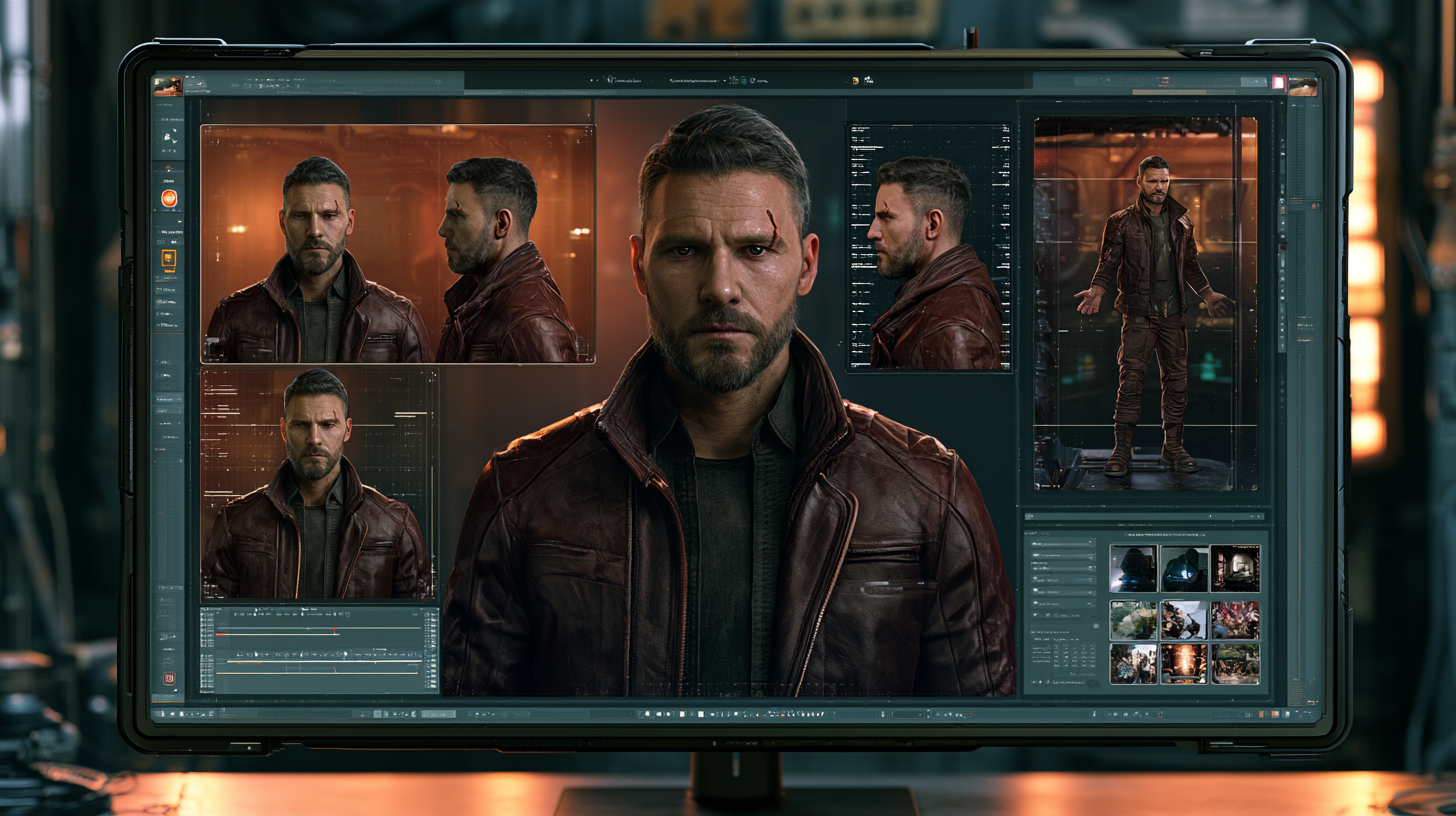
Character: Adrian, fictional explorer, approximately 38 years old.
Appearance: Narrow angular face, short dark hair, trimmed beard, small scar above the right eyebrow.
Clothing: Weathered brown leather jacket, charcoal shirt, dark trousers.
Visual style: Realistic cinematic illustration with muted blue-grey shadows and warm amber highlights.
Continuity rule: Preserve the character's face, approximate age, hair, scar, and clothing unless the story explicitly requires a change.
Create a master reference image and reuse it when the image-generation tool supports references.
For a deeper explanation, see our related Creator Hub article: How to Keep AI Characters Consistent Across Images: A Practical Guide for Creators.
6. Generate Images for Each Scene
Once the scene plan is approved, create the visual assets.
AI image tools can help generate fictional environments, conceptual illustrations, characters, and supporting scenes.
For example, ChatGPT Images supports image generation and editing, including reference-guided revisions.
OpenAI's official guidance recommends clear prompts that describe the subject, environment, composition, and important constraints.
Example image prompt
Create a cinematic widescreen illustration of a fictional 38-year-old explorer standing before the enormous gates of an abandoned stone fortress at sunrise. Preserve the facial identity and clothing from the supplied character reference image. Weathered architecture, drifting morning mist, muted blue-grey shadows, warm amber sunlight, realistic anatomy, medium-wide camera framing, no text or watermarks.
A strong prompt identifies the important elements without adding unnecessary or contradictory instructions.
Review every image
Before approving an image, check:
- Character consistency
- Historical or factual appropriateness
- Correct scene composition
- Facial and hand anatomy
- Clothing and prop continuity
- Aspect ratio
- Unwanted text or visual artifacts
For documentaries, distinguish fictional or illustrative reconstructions from authentic historical footage.
AI-generated visuals should not be presented as genuine archival evidence.
7. Turn Approved Images Into Moving Video
Image-to-video tools can animate a still image by generating movement, camera motion, or environmental changes.
Runway is one example of a platform offering image-to-video generation.
Its Gen-4.5 documentation describes support for image-to-video and text-to-video generation, including clips between two and ten seconds, subject to the model's supported settings.
Different models have different duration limits, resolutions, credit costs, and capabilities.
Example animation prompt
Slow cinematic camera push toward the fortress entrance. Morning fog drifts gently across the ground. The explorer remains mostly still while his cloak moves subtly in the breeze. Maintain the character's facial identity and the original architectural composition. Natural restrained movement, no abrupt camera rotation.
The prompt focuses on movement rather than describing the entire image again.
Keep motion realistic
Complex actions can be difficult for generative video systems.
A character running through a crowd, drawing a weapon, and turning toward the camera may introduce more opportunities for visual inconsistencies than a simple walking shot.
For early projects, consider:
- Slow camera movements
- Subtle environmental motion
- Controlled character gestures
- Simple action sequences
- Short, deliberate shots
These are practical production choices, not guarantees.
Always inspect the resulting animation.
8. Understand the Difference Between Generated Clip Length and Final Video Length
One of the biggest budgeting mistakes is assuming that every second of a finished video must be newly generated with an AI video model.
That is not necessarily true.
A finished video can combine animated clips, still images with editor-based camera movement, maps, typography, licensed footage, and screen recordings.
For example, an eight-minute video contains 480 seconds.
If a creator generates 20 animated clips of five seconds each, that produces 100 seconds of AI-generated motion.
The remaining 380 seconds must be covered by other footage, still-image sequences, graphics, or additional generated clips.
A production plan should account for that difference before spending credits.
Illustrative production breakdown
| Visual asset | Total duration | |---|---:| | 20 AI animated clips × 5 seconds | 100 seconds | | Still images with editing movement | 140 seconds | | Licensed or original footage | 160 seconds | | Maps, diagrams, and title sequences | 80 seconds | | Total | 480 seconds |
This is a hypothetical example, not a recommended formula for every video.
The goal is to choose the most appropriate visual method for each part of the narration.
9. Assemble Everything in a Video Editor
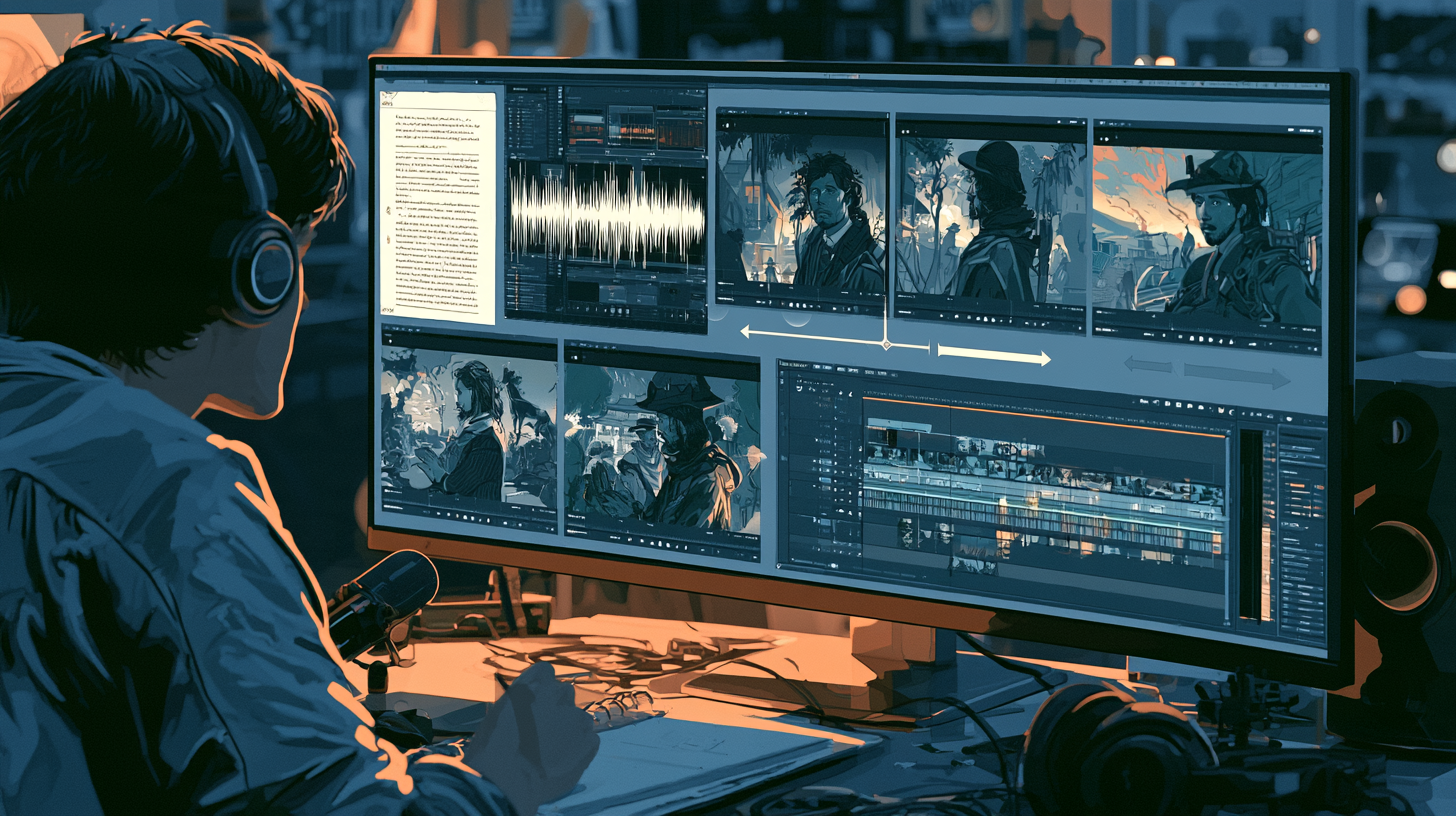
Once the narration, images, and animated clips are ready, import them into a timeline-based video editor.
Common options include DaVinci Resolve, Adobe Premiere Pro, Final Cut Pro, and CapCut.
Features, pricing, and platform support vary.
Recommended editing sequence
First: Place the complete narration on the timeline.
Second: Add visual assets in the correct story order.
Third: Adjust scene durations to match the narration.
Fourth: Add transitions only where they improve the flow.
Fifth: Add background music and sound effects.
Sixth: Balance audio levels.
Seventh: Add titles, captions, or explanatory graphics where needed.
Eighth: Review the finished video from beginning to end.
Avoid using effects simply because they are available.
A clean cut between two meaningful shots may be more effective than an elaborate transition.
10. Use Music and Sound Effects Carefully
Music can strengthen atmosphere, emotion, and pacing.
But music should support the narration rather than compete with it.
For example, a documentary about an abandoned fortress might use restrained atmospheric music during the opening, increasing intensity only when the story requires it.
Sound effects can reinforce visual events, such as footsteps, wind, doors, or distant machinery.
However, excessive sound design can make a production distracting.
Licensing matters
Use original audio, properly licensed music, or material whose terms permit your intended use.
Do not assume that every AI-generated music track is automatically cleared for commercial publishing.
Licensing may depend on the service, subscription, model, and date of creation.
Keep records of relevant licenses and asset sources.
11. Export the Finished Video
Before exporting, choose settings appropriate for the destination platform.
For a standard widescreen YouTube video, 16:9 is a common format.
A typical 1080p project uses a frame size of 1920 × 1080 pixels.
H.264 video in an MP4 container is a widely supported delivery option.
However, the correct settings depend on your source material, frame rate, and editing software.
Final export checklist
- Correct aspect ratio
- Correct resolution
- Consistent frame rate
- Clear narration
- Balanced music and effects
- No missing media
- No accidental black frames
- No unfinished visual placeholders
- Correct spelling in titles and captions
- No unintended watermarks
- Complete beginning and ending
After exporting, play the finished file outside the editor.
Check the beginning, middle, and end, and inspect any scenes that previously required corrections.
A successful export does not automatically mean the video is ready to publish.
12. How Much Does an AI Video Cost to Produce?
There is no single reliable price for creating an AI-assisted video.
Costs depend on the selected services, subscriptions, generation settings, output duration, retries, and whether the creator performs editing personally.
The following categories should be included in a budget:
| Cost category | What affects the cost | |---|---| | Script preparation | Research time, subscriptions, editing | | AI narration | Characters, minutes, model, licensing | | AI images | Number of generations, quality, retries | | AI video animation | Clip duration, model, credits, retries | | Video editing | Software subscription or license | | Music and sound | Licensing or generation costs | | Storage | Local or cloud storage requirements |
Example: Calculating video-generation credits
Runway's documented Gen-4.5 rate is 12 credits per generated second.
At that rate:
- One five-second clip costs 60 credits.
- Twenty five-second clips cost 1,200 credits.
- Thirty five-second clips cost 1,800 credits.
These calculations assume successful generations at that specific model rate and do not include retries or other production expenses.
Credit rates, model availability, and subscription allowances can change.
The monetary cost of those credits depends on the applicable plan and purchasing terms.
Budget for failed generations
Suppose you need 20 approved clips but only two out of every three generated clips are usable.
You might need approximately 30 generations to obtain 20 approved results.
That is an illustrative acceptance rate, not an industry benchmark.
For this reason, creators should test a few representative scenes before purchasing large amounts of generation capacity.
13. How Long Does the Process Take?
AI tools can reduce certain manual tasks, but they do not eliminate review and revision.
A short educational video may be completed relatively quickly if the script, visuals, and production style are straightforward.
A detailed historical documentary may require substantially more time for research, continuity, visual corrections, and editing.
An illustrative workload for a modest eight-minute AI-assisted video might be:
| Stage | Estimated active work | |---|---:| | Research and script review | 2–4 hours | | Narration and corrections | 1–2 hours | | Scene planning | 1–2 hours | | Image generation and review | 2–5 hours | | Animation and review | 2–5 hours | | Timeline editing and audio | 3–6 hours | | Export and final checks | 1–2 hours |
These estimates are examples, not verified industry averages. They also exclude some waiting time for remote generation queues.
Actual production times vary significantly with complexity, experience, and available tools.
14. Understand YouTube's AI Disclosure Requirements
YouTube permits creators to use generative AI tools, but certain realistic synthetic or meaningfully altered content must be disclosed.
Under YouTube's current guidance, disclosure is required for content such as:
- Realistic AI scenes depicting events that did not occur
- Altered footage of real places or events
- Real people appearing to say or do things they did not actually say or do
By contrast, using AI for production assistance—such as outlining a script or preparing a thumbnail—does not automatically require disclosure.
Non-realistic fictional animation and minor aesthetic edits may also fall outside the disclosure requirement.
Creators should review the current rules for their specific content.
YouTube provides an AI-use disclosure option during the upload process.
YouTube also states that disclosure alone does not limit monetization eligibility.
However, disclosure does not override copyright rules, Community Guidelines, or other platform policies.
15. Common Script-to-Video Production Mistakes
Generating visuals before finalizing the script
Changes to the narration can make previously generated scenes unnecessary.
Creating images without a continuity guide
Characters, locations, and props may change between scenes.
Animating every image
This can consume substantial credits without improving the finished video.
Using overly complex motion prompts
Complicated movements may introduce visual artifacts or identity drift.
Ignoring narration timing
Scenes can feel disconnected when they do not match the spoken information.
Skipping factual verification
AI-generated narration and visuals can present invented details convincingly.
Forgetting licensing and disclosure requirements
Commercial publishing requires attention to asset rights and platform policies.
Publishing without watching the final export
A complete quality check can catch problems that are not obvious while editing individual scenes.
16. A Practical First-Project Workflow
For a beginner, start with a two-minute video rather than a full documentary.
Choose a simple subject with approximately 250–300 words of narration.
Then:
- Finalize and verify the script.
- Record or generate the narration.
- Divide it into approximately eight to twelve visual scenes.
- Create a small reference sheet for recurring characters or locations.
- Generate the required images.
- Select two or three scenes that genuinely benefit from animation.
- Animate those scenes using short, controlled motion prompts.
- Assemble the complete video in an editor.
- Add appropriate music, captions, and transitions.
- Export and review the finished video.
This smaller project allows you to test the entire workflow without committing to a large production budget.
Record what worked, what failed, how many generations were needed, and how much time each stage required.
Use that information to estimate future projects more accurately.
Final Thoughts
Turning a script into an AI video is not a single-button process if the goal is a coherent, original, publishable production.
The most reliable approach is to treat AI tools as parts of a structured filmmaking workflow.
Begin with a strong script. Build narration around its meaning. Plan visuals that support the story. Maintain character and environment continuity. Animate selectively. Edit carefully. Review the final export.
AI can help independent creators produce visuals that would previously have required significantly more equipment and resources.
But storytelling, factual accuracy, creative direction, licensing, and quality control remain the creator's responsibility.
The tools generate assets. The creator builds the film.